Have you ever thought about recording the screen on your iPhone or iPad and adding your own voice? It is simple to record with the microphone during a screen recording in iOS or iPadOS.
What is screen recording and why is it useful?
Screen recording lets you make a video of your iPhone, which can be useful for a variety of purposes, such as:
- Creating app tutorials or demos
- Sharing gameplay or live streams
- Showing problems or errors you are facing
- Creating educational or creative content
How to use the microphone to record
audio during a screen recording
By default, screen recording on the iPhone or iPad captures the output audio from your device, meaning the sound that comes from the speakers. However, if you want to capture input audio, meaning the sound that comes through the microphone, you need a small adjustment. See how:
- Open Control Center by swiping down from the top-right corner of the screen (on iPhone X or later, or on iPad with iOS 12 or later) or swiping up from the bottom edge of the screen (on other devices).
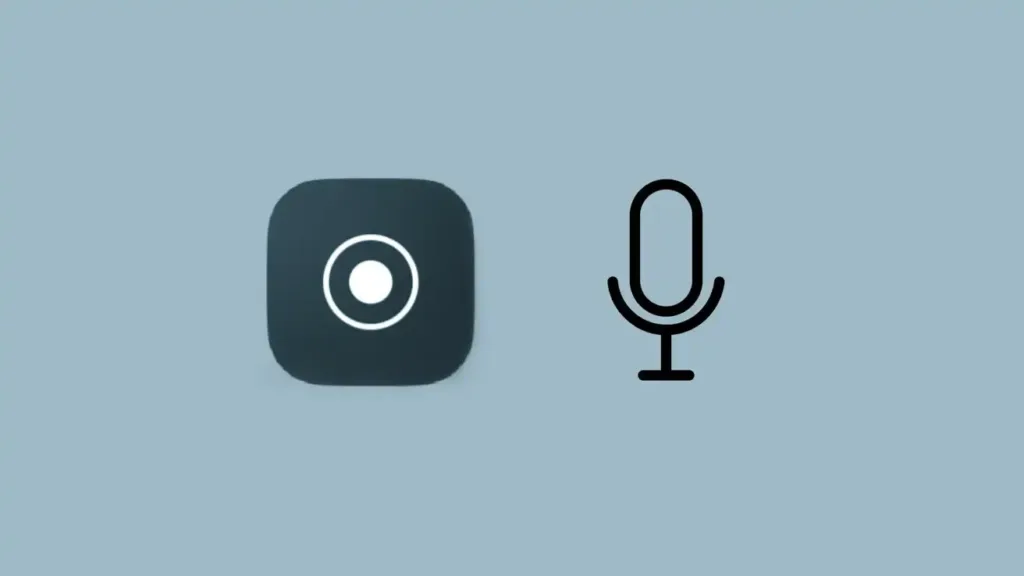
- Press and hold the “Screen Recording” button, which has an icon of a white circle inside another circle.
- Tap the “Microphone” button. It turns red and shows “On” underneath.
- Tap “Start Recording” to begin recording your iPhone screen with microphone audio.
After that, any screen recording you make includes audio from the microphone on top of the other sound. If you want to turn it off, just go back to Control Center and switch off the microphone button the same way you turned it on.